Create a multi-project Jira Cloud integration
A "multi-project" Jira Cloud integration connects multiple Jama Connect projects with multiple Jira projects.
Field mapping groups pair one Jama item type with one Jira issue type, and routes define the Jama project location, Jira project, creation direction, and optional creation rules for each sync path.
Note
The ability to create a multi-project Jira integration applies to Jira Cloud version 1.40 and later.
This process of creating a multi-project integration consists of these tasks:
Create a Jira Cloud integration using the Jama Connect Interchange integration wizard.
To configure a multi-project Jira Cloud integration:
The integration is saved in a disabled state so you can complete and validate its configuration before synchronization begins.
In Jama Connect, create empty sets or folders in the projects you plan to synchronize.
In Jira, create new, empty project for testing purposes.
Note
You can select company-managed projects. A team-managed project can be selected only by itself, when supported.
In the Jama Connect Interchange header bar, select Integrations, then select Add integration to open the Jama Connect integration wizard.

Complete each page of the wizard, then select Next.
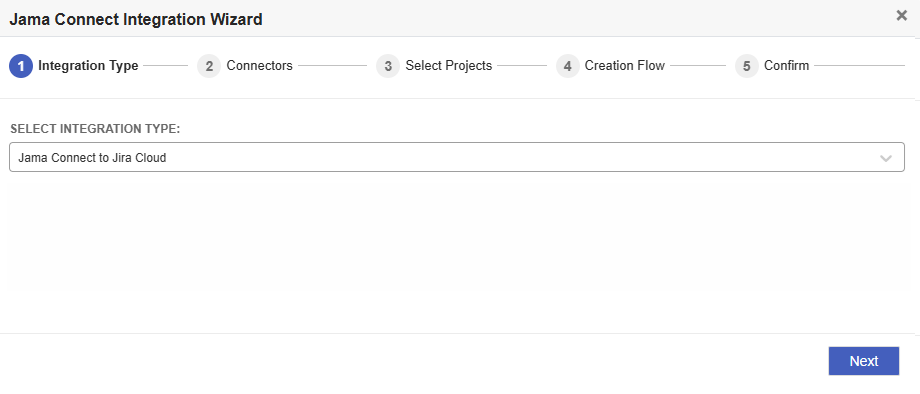
Integration Type — Select the integration type:
Select integration — Select Jama Connect to Jira Cloud. When multi-to-multi is enabled, Jira Cloud uses the unified multi-project setup. Jira Data Center integrations continue to use the legacy single-project workflow.
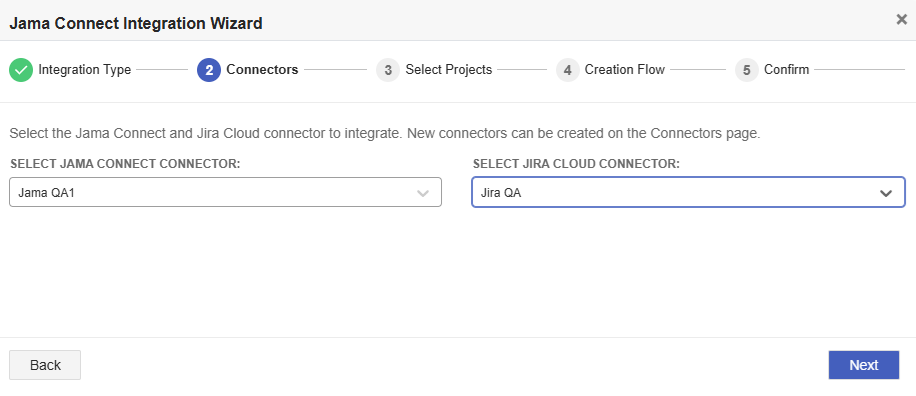
Connectors — Choose the connectors you want to integrate.
Choose Jama Connect for Source Connector — Select the Jama Connect connector that you want to integrate.
Choose Jira for Target Connector — Select the Jira connector that you want to integrate.
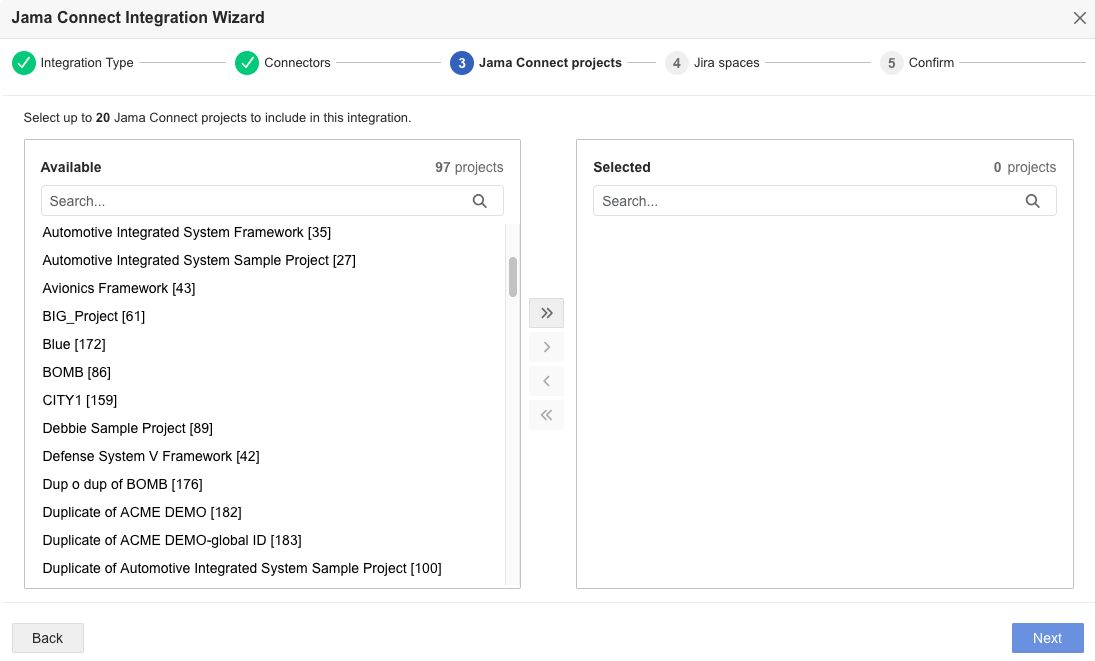
Select Projects
Jama Connect — For the Jama Connect connector, search for or select up to 20 Jama Connect projects.
Jira — For the Jira connector, select up to 20 Jira projects. Archived projects are excluded from Add all.
Integration Configuration
Name your Integration — Enter a descriptive name for the integration.
Frequency — Select the frequency with which you want the integration to run. Multi-project Jira Cloud integrations require a minimum frequency of one minute; lower values are automatically raised to 60 seconds.
Sync Attachments — Toggle to Enabled to sync item attachments.
Note
Only attachments of less than 25 MB are copied between systems. If an attachment exceeds 25 MB, a placeholder text file is created in the other system to indicate that an attachment exists in the linked item.
Sync Comments — Toggle to Enabled to sync item comments.
Note
Jama Connect Interchange doesn't support edits to Jira comments. If a Jira user edits a comment after posting it, the edited version is not synced to Jama Connect. Only the original comment text exists in Jama Connect.
Select Submit to complete the wizard.