Configure routes
Routes define where a field mapping group applies and how new items are created. Each field mapping group can contain up to 40 routes.
To configure a route and creation rules:
On the Integrations page, select the link for the integration you created.
Select the Field Mappings tab, then select the Routes tab for the field mapping group.
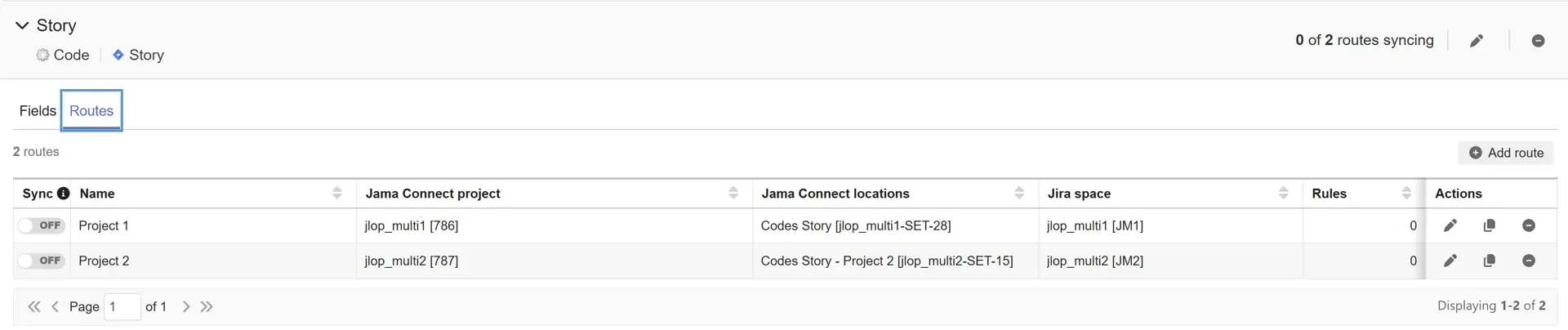
Select Add route and enter a route name, Jama Connect project, location mode, and Jira project.
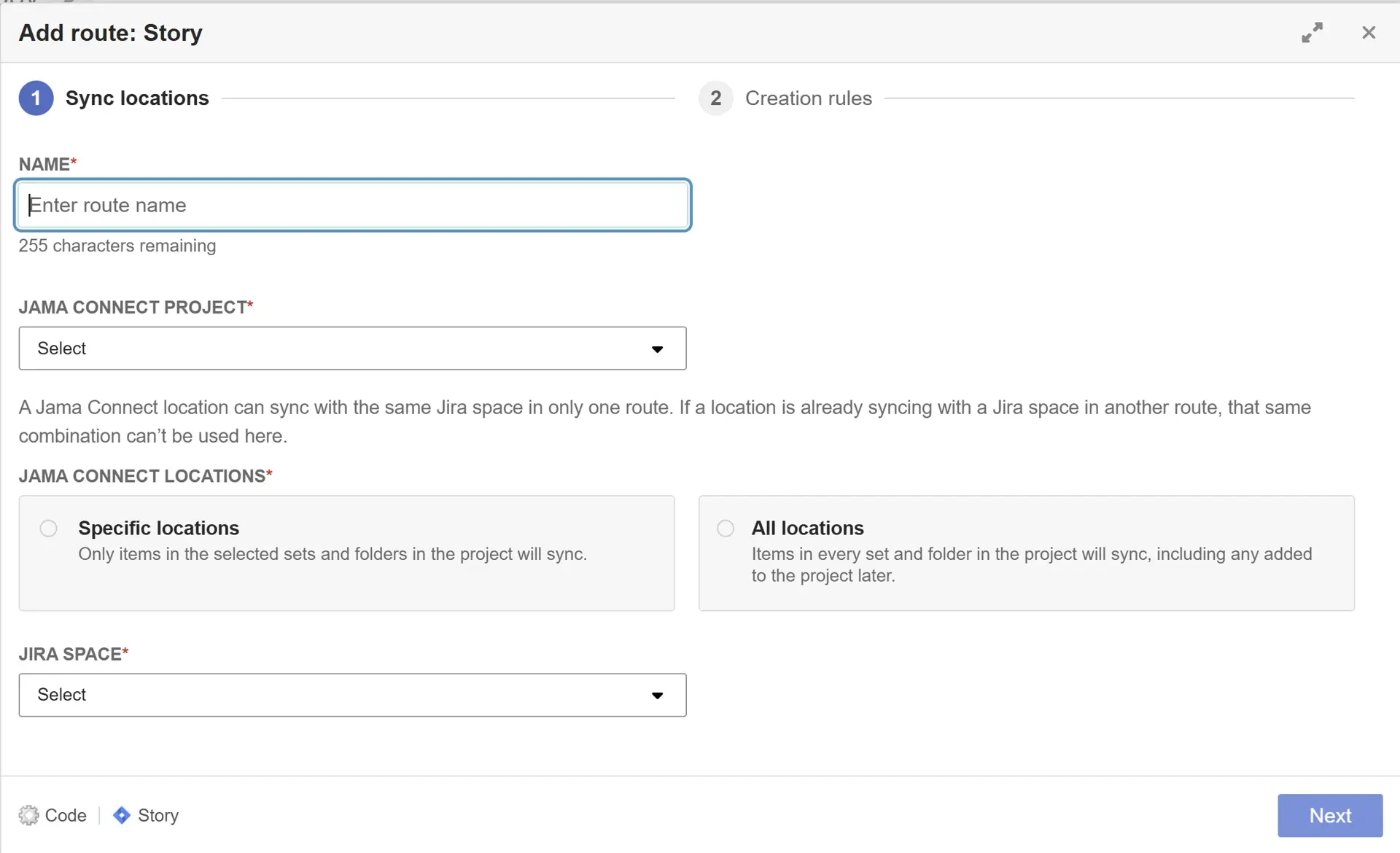
For Specific locations, select the sets or compatible component containers that the route should include. For All locations, the route includes every compatible set or folder in the project, including future locations.
Select the Jira Space, then select Next.
Select the creation direction: Bidirectional, Jama Connect to Jira, or Jira to Jama Connect.
Save the route. The route is enabled by default when its configuration is available.
Important
The same Jama Connect location and Jira project combination cannot appear in more than one route in the same field mapping group. An All locations route conflicts with overlapping routes for the same project and Jira project. Don’t use multiple routes to duplicate data across systems.