Set up Jama Connect MCP
The process of setting up Jama Connect MCP includes reviewing the prerequisites and completing the configuration steps. It is also helpful to review Supported MCP capabilities, Validated example workflows, and Operational constraints and known limitations.
To configure Jama Connect MCP:
Confirm that Jama Connect MCP access has been enabled for your tenant by Jama Software. If unsure, contact your Customer Success Manager.
Generate the API token:
Log in to Jama Connect and create the MCP OAuth credentials.
Important
You must generate new credentials once Jama Connect MCP has been enabled. Pre-existing credentials don't work.
Make sure that your user is enabled in Admin > REST API > Managed Access Control.
Create OAuth Client ID and Secret: Set API credentials.
Store the credentials in a secure place.
To configure a generic MCP-compatible client, use one of the following code examples, replacing the variables the way your MCP client defines or configures Jama Connect MCP.
This code snippet was tested with the Copilot extension in Visual Studio Code.
{
    "servers": {
        "jama-mcp": {
            "command": "npx",
           "args": [
                "-y",
                "mcp-remote@latest",
                "<tenant URL>/mcp/mcp-core",
                "--host",
                "127.0.0.1",
                "--static-oauth-client-info",
                "@<credentials file path>",
                "--transport"
            ]
        }
    },
    "inputs": []
}
This code snippet was tested against the Copilot plugin in IntelliJ.
{
   "Jama-Connect-MCP": {
    "command": "npx",
    "args": [
      "-y",
      "mcp-remote@latest",
      "<tenant-url>/mcp/mcp-core",
      "--host",
      "127.0.0.1",
      "--static-oauth-client-info",
      "<jama-oauth-credentials-file>"
    ]
  }
}
Replace this...
With this...
tenant-urlYour Jama Connect subdomain.
<jama-oath-credentials-file>File location where you stored your credentials.
Mac example:
@/Users/username/.mcp.auth.jsonPC example:
C:/Users/testuser/.mcp.auth.jsonUse the following JSON example to provide your OAuth credentials:
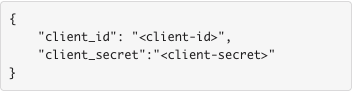
client-idYour generated REST API client ID.
client-secretYour generated REST API client secret.
Launch the MCP client:
Log in to the Jama Connect environment linked to Jama Connect MCP.
Launch Jama Connect MCP, following the instructions for your IDE. In many cases, a Start button appears near the server configuration in the mcp.json file.
Jama Connect MCP is now enabled and available for use.